Contents
In this how-to we convert the GL.iNet GL-MT6000 (aka Flint 2) to OpenWRT.
Requirements
- A network cable. OpenWRT's first setup requires a network cable.
Why the GL-MT6000
When selecting an OpenWRT router, we look for 3 things:
- OpenWRT compatible.
- Sufficient storage to install VPN and other apps.
- Sufficient RAM to run those apps.
- Good OpenSSL benchmarks.
- Easy to buy online.
The GL.iNet GL-MT6000 ticks all these boxes:
- Fully supported by OpenWRT.
- 8192MB (8GB) flash storage.
- 1024MB (1GB) RAM.
- 2274Mbps for AES256.
- Available on Amazon as well as directly from GL.iNet website.
For more information on other routers compatible with OpenWRT, check the OpenWRT Table of Hardware.
Why OpenWRT
OpenWRT offers an identical experience on hundreds of routers, making it a popular target for 3rd-party apps.
Don't GL.iNet devices already run OpenWRT?
GL.iNet and some other manufacturers use OpenWRT as the base for the own router firmware. Unfortunately they make so many modifications that full compatibility with regular OpenWRT is lost. GL.iNet firmware actively removes routing and firewall rules installed by our VPN app - hence we have to replace it with regular OpenWRT.
Download OpenWRT
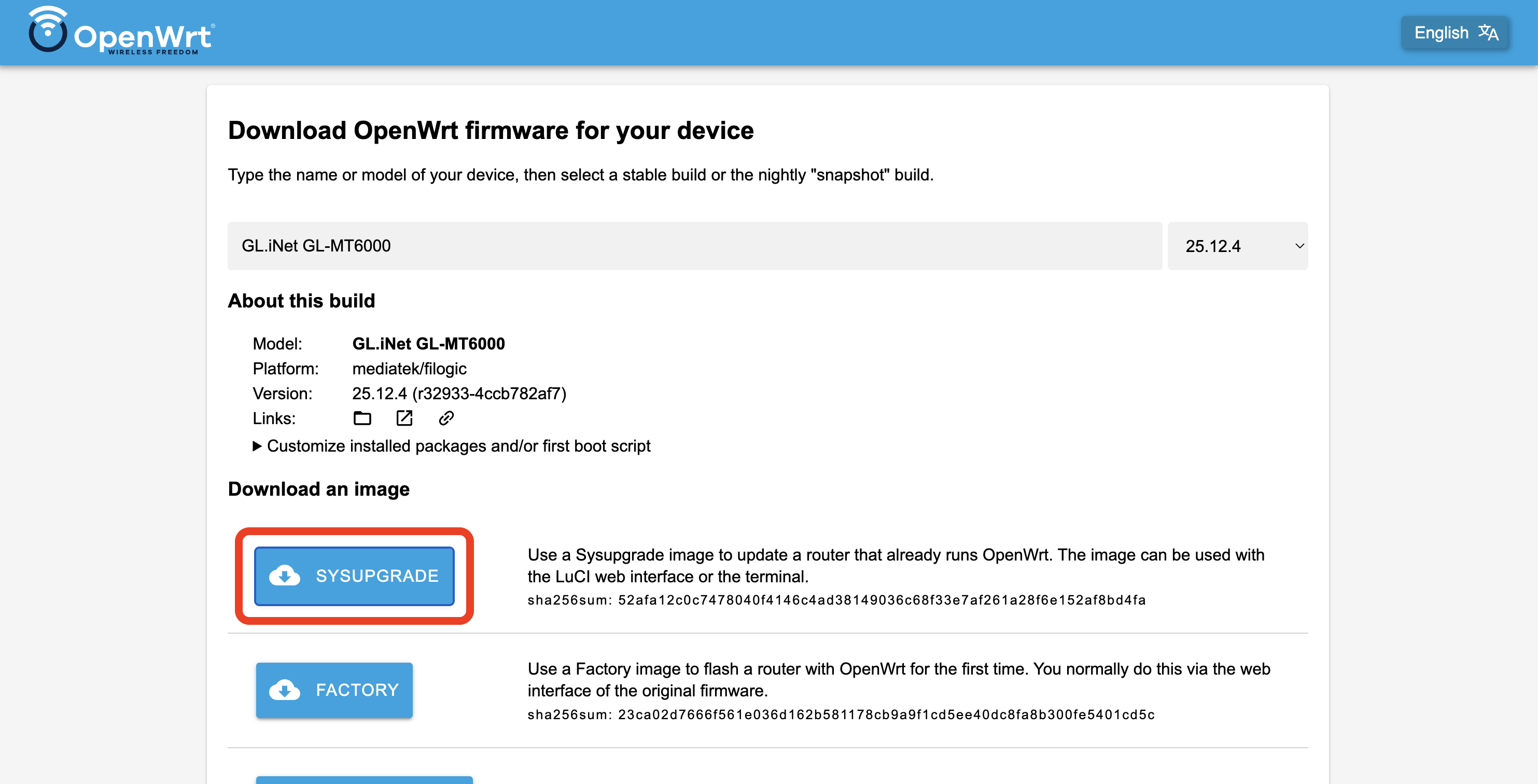
- Open the OpenWRT Firmware Selector.
- Click the SYSUPGRADE button to download the firmware. The downloaded file will be called something like
openwrt-25.12.4-mediatek-filogic-glinet_gl-mt6000-squashfs-factory.
Install OpenWRT
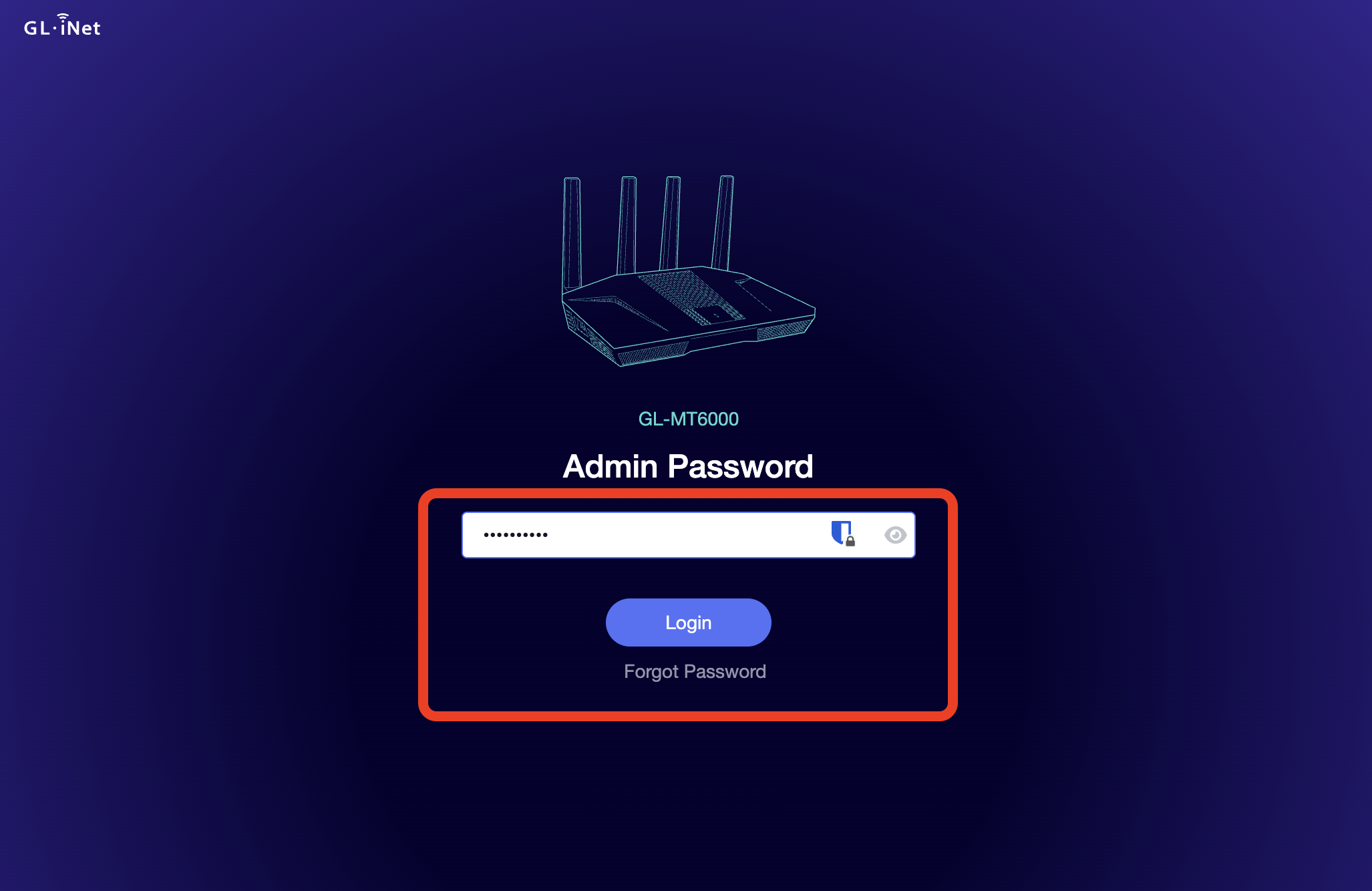
Login to your GL-MT6000. Its web interface is usually found at https://192.168.8.1.
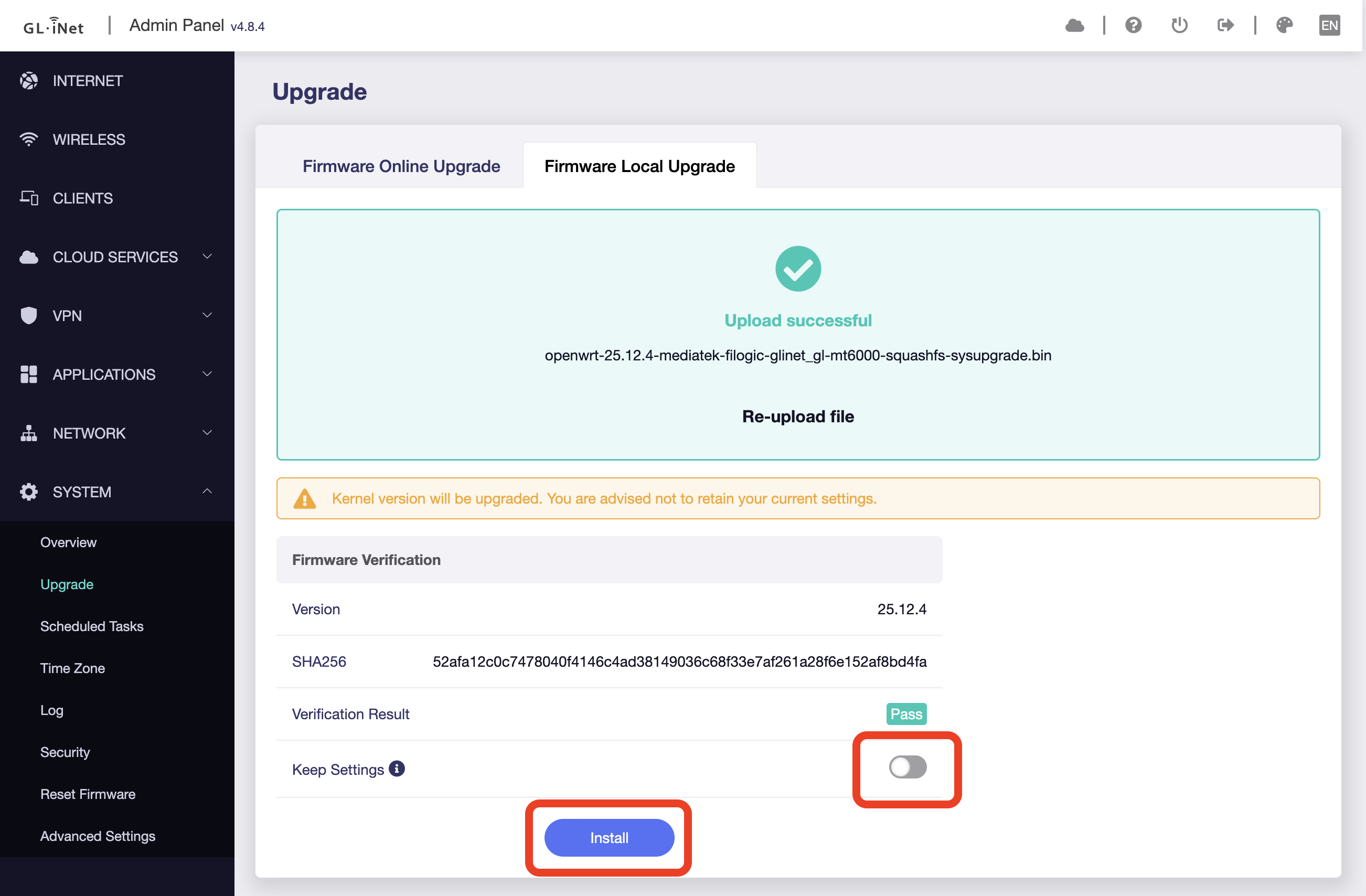
Go to System > Update > Firmware Local Upgrade.
Upload the firmware you downloaded in the previous step.
After uploading, verify that Keep Settings is disabled. (The GL.iNet settings are not understood by OpenWRT, hence they need to be deleted).
Setup
You may now proceed with our OpenWRT Setup instructions.